 TrackerSonar
TrackerSonar features
An honest overview of what the TrackerSonar app for iPhone and iPad does, how each feature works and whether it is free or part of Premium.
This page describes the iPhone and iPad app (iOS and iPadOS 17 or later). TrackerSonar is also available on Android, listed as “Tracker Detect” on Google Play; its features and pricing may differ.
Scan for hidden trackers Free: 5 scans
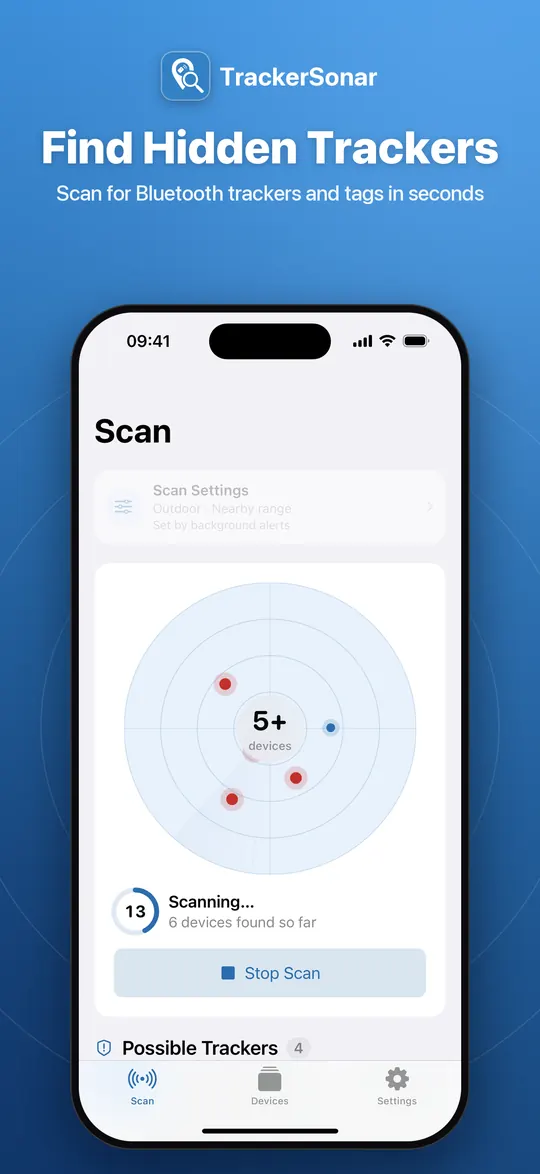
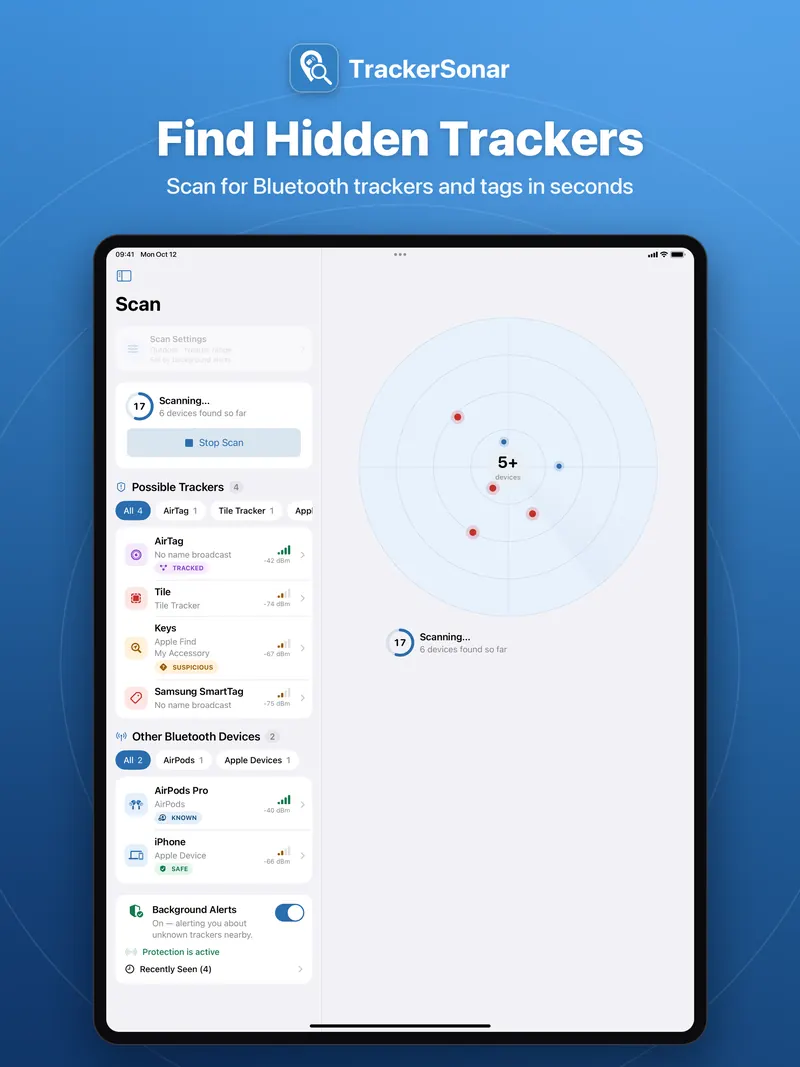
Tap Scan for Trackers and TrackerSonar listens for every Bluetooth device advertising nearby. A live radar places a dot for each device by its estimated distance, and the scan ends with a clear verdict: “No trackers found” or “1 possible tracker nearby”.
- Possible trackers are listed first, followed by “Other Bluetooth devices” such as AirPods and other Apple devices. Filter chips narrow the list by type.
- Free scans run for 10 seconds; the free version includes 5 scans in total. Premium scans run for 30 seconds, as often as you like, with Scan again.
- Stop a scan at any time to see what has been found so far.
- Tip: walk slowly through the room, car or area you want to check while the scan runs.
Which trackers TrackerSonar recognizes Free
TrackerSonar recognizes trackers by the Bluetooth signals they broadcast. It identifies:
- Apple AirTag and other accessories in Apple’s Find My network
- Tile trackers
- Samsung Galaxy SmartTag tags
- Chipolo and Pebblebee trackers
- Tags in Google’s Find Hub network (formerly Find My Device)
- Trackers that announce themselves using the Apple–Google industry specification for detecting unwanted location trackers
It also lists non-tracker devices such as AirPods, other Apple devices and general Bluetooth devices, so you can see everything around you. For some devices that broadcast very little information, TrackerSonar briefly connects to check whether the device is an AirTag or a Find My accessory and to read its name.
Honest limits: no app can promise to find every tracker. A tracker that is switched off, out of Bluetooth range or does not transmit Bluetooth signals at all cannot be found by a Bluetooth scan. Trackers also change their Bluetooth address regularly, so the same tag can appear as a new device later. Learn more in how each tracker brand can be detected.
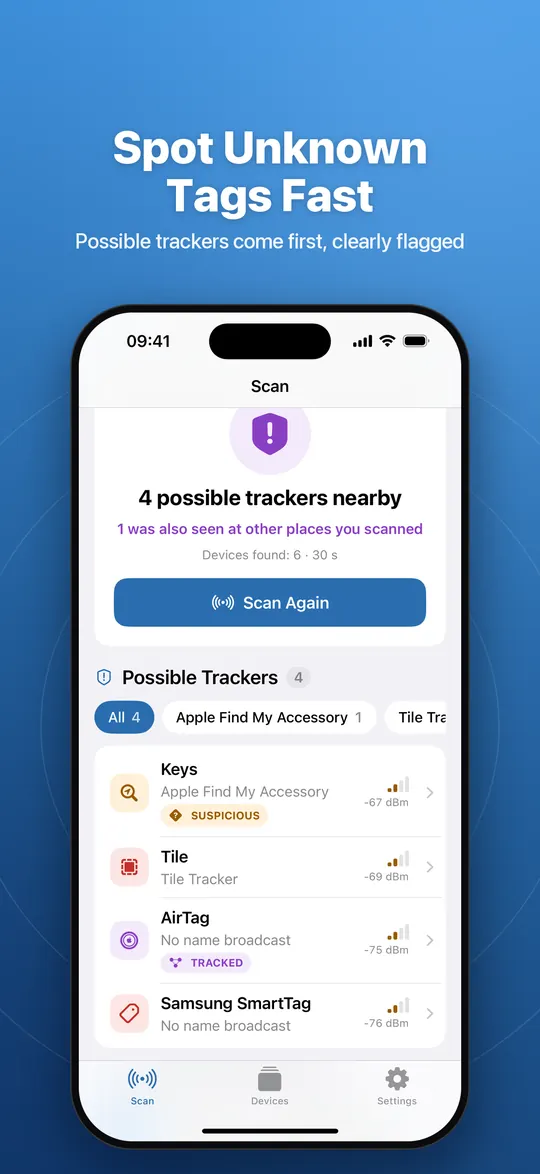
SUSPICIOUS, TRACKED and SAFE badges Free
Badges tell you which devices deserve a closer look.
- SUSPICIOUS marks tags that can be used to track people — for example devices in Apple’s Find My or Google’s Find Hub network — that you have not marked as your own.
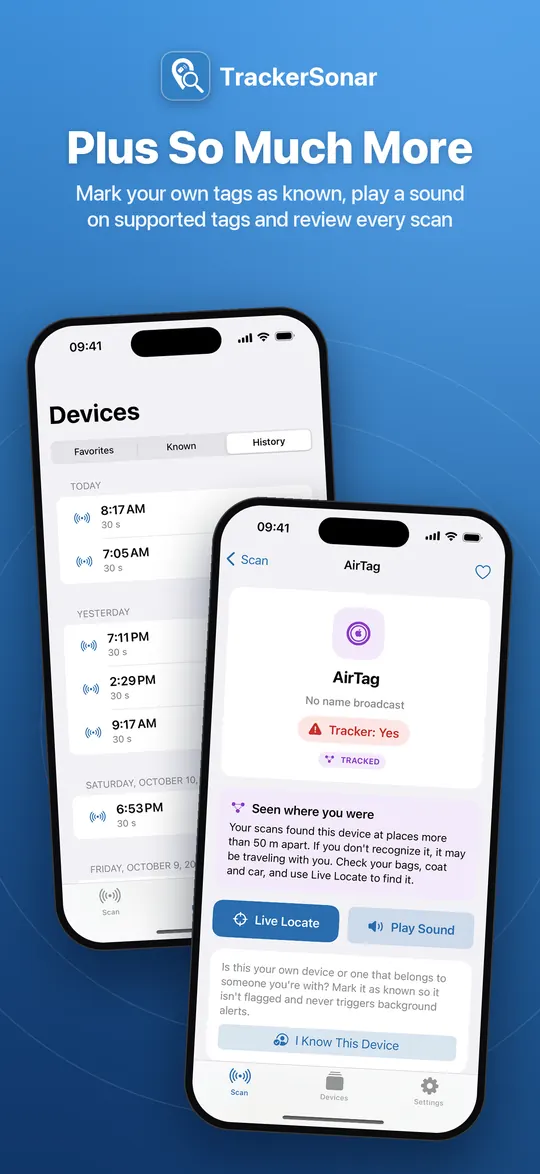
- TRACKED marks a device your scans found at places more than 50 m apart. If you don’t recognize it, it may be travelling with you. This needs location access while you scan.
- SAFE marks devices that are not classified as trackers (Premium).
Each device’s detail page explains what the device is, why it is flagged and what you can do next.
Mark your own devices as known Free
Your own AirTag, your earbuds or a family member’s tag shouldn’t raise an alarm every time. Tap I know this device on its detail page (with Undo) and it no longer shows as suspicious. Known devices are listed in the Devices tab, where you can remove them with a swipe, and they are ignored by background alerts.
Live Locate: warmer or colder Premium
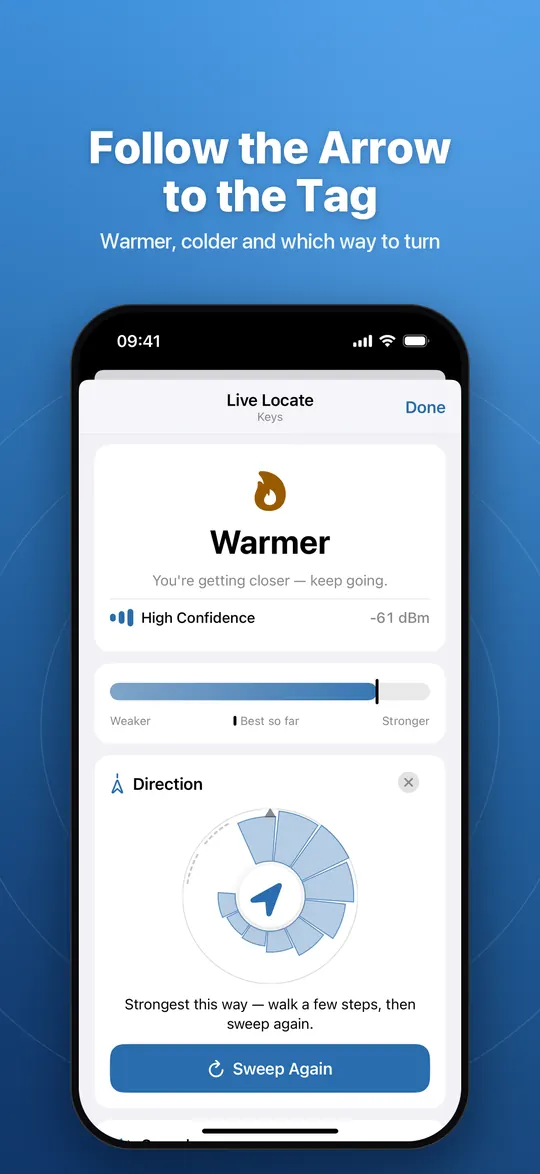
Live Locate follows one device’s Bluetooth signal in real time and turns it into a calm “getting warmer / getting colder” guide, so you can walk straight to a tag tucked into a bag, a coat or a car.
- Trend first: a large Warmer, Colder or Steady label, with a confidence indicator (High, Medium, Low), a signal gauge with a “best so far” marker and the signal strength in dBm.
- Find direction: hold your phone in front of your chest and turn slowly on the spot (about 20–30 seconds for a full circle). Your body blocks signals coming from behind you, so the strongest heading points toward the tag. It uses the phone’s motion sensors — no compass and no extra permission.
- Haptic ticks speed up as you get closer; optional sound ticks follow the same rhythm.
- “You’re very close” panel with hand-search tips and, on supported tags, Play sound.
- Trackers such as AirTags may only send a signal every couple of seconds and change their address. Live Locate tells you when the signal is gone and offers to scan again instead of showing a frozen screen.
Live Locate also helps you find your own earbuds or headphones nearby.
Play a sound on supported tags Premium
On AirTags and on tags that support the Apple–Google unwanted-tracking specification, TrackerSonar can ask the tag to play a sound so you can hear where it is. It connects briefly over Bluetooth and disconnects afterwards; the button only appears for devices that support it. A tag may refuse the request while it is near its owner — the app tells you when that happens.
Is it following me? Sightings map and timeline Premium
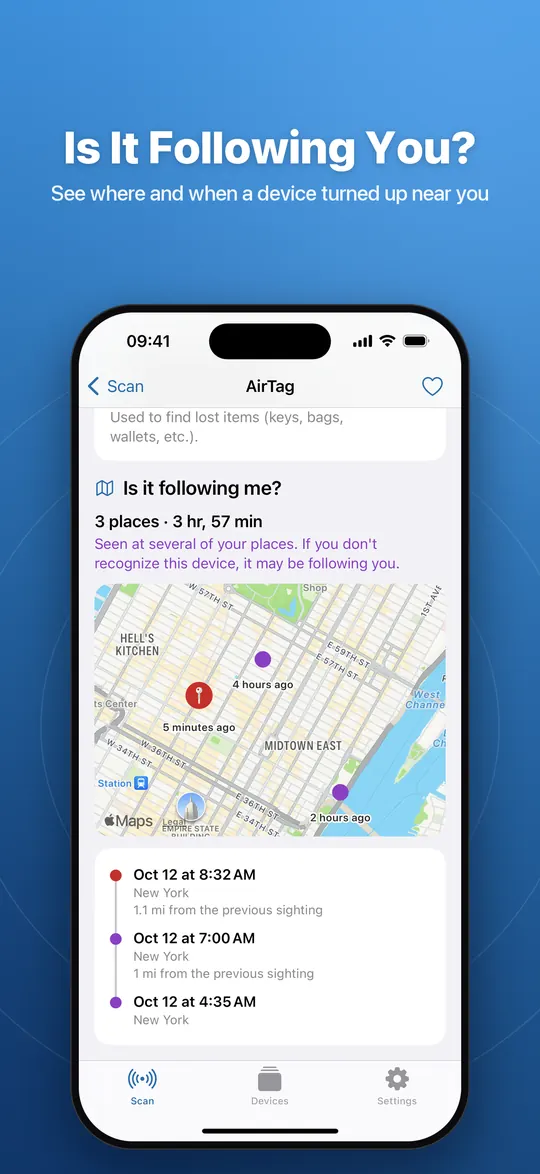
When location access is allowed, every scan remembers where each device was seen. The sightings map and the “Is it following me?” timeline show when and where a device turned up near you, so you can tell whether something really moves with you.
- A summary such as “3 places · 3 hr, 57 min”, counting places more than 50 m apart.
- Each sighting with its time, place and distance from the previous one; tap a row to highlight it on the map.
- Sightings are stored only on your device and never deleted automatically. You can clear them in Settings.
Recording sightings is free; viewing the map and timeline is part of Premium.
Background alerts (continuous scan) Premium
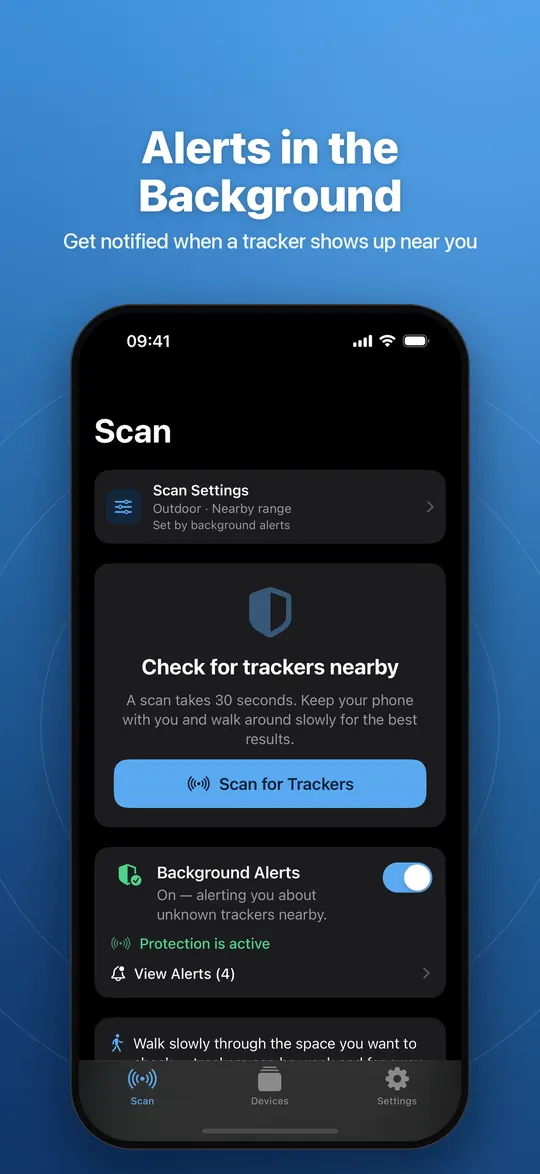
Turn on Background Alerts and TrackerSonar keeps scanning while it runs in the background and sends a notification when a tracker shows up near you.
- Choose what to watch for: trackers or AirPods.
- Devices you marked as known never trigger an alert. A device that disappears and comes back after a few minutes can alert again.
- Bluetooth and notifications are required. “Always” location access is optional and helps iOS restart background scanning when you move.
- A list of recent alerts lets you open each device.
Honest limits: iOS restricts what apps can scan in the background. Tracker alerts are designed for this; AirPods alerts work best while the app is open.
Widget and Live Activity Premium
Home Screen and Lock Screen widgets show your protection status at a glance — on or off, what is being watched and the time of the last alert. While background scanning is on, a Live Activity shows the status on the Lock Screen and in the Dynamic Island. Tapping opens the app on Scan or on your alerts.
Scan settings for indoor or outdoor use Premium
Choose Indoor or Outdoor and a search range from Nearby to Extended or Maximum. A shorter range ignores weak, distant signals so you can focus on what is close to you; a longer range shows more of your surroundings. Free users can see all options; changing them is part of Premium.
Scan history and favorites Free
Scan history lists your past scans by day with date, time, duration and the number of devices found. The free version shows your 10 most recent scans; Premium shows the complete history.
Favorites keep devices you want to keep an eye on — unlimited, for everyone.
Private by design
TrackerSonar has no accounts and no server of its own. Scan results, the places where devices were seen, favorites, known devices and scan history stay on your device. The free version shows ads from Google AdMob and asks for your permission before ads may use your advertising identifier; Premium has no ads. The app uses Firebase for usage statistics and crash reports without device names, identifiers of found trackers or locations. Details: privacy policy.
Designed for iPhone and iPad
On iPad, TrackerSonar uses a sidebar with lists and device details side by side, in portrait and landscape, Split View and Slide Over. Light and dark mode, VoiceOver labels, Dynamic Type and Reduce Motion are supported.
The app is available in English, German, Spanish (Spain and Mexico), French, Italian, Japanese, Norwegian, Dutch, Polish, Brazilian Portuguese and Swedish. It requires iOS or iPadOS 17 or later.
Try TrackerSonar
Free download with 5 free scans on iPhone and iPad. Also available on Android.

If you feel you are in danger: go to a safe, public place and contact local emergency services (for example 911 in the US, 112 in the EU, 999 in the UK or 000 in Australia). Think before you disable or throw away a tracker: it can be evidence, and once it is disabled its owner stops getting location updates, which they may notice.